


 452
452
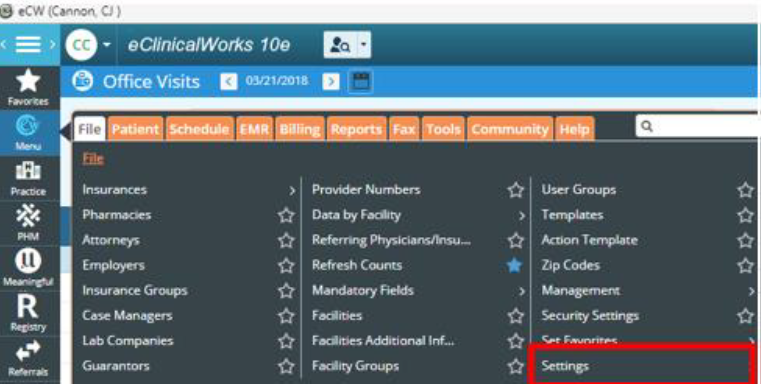
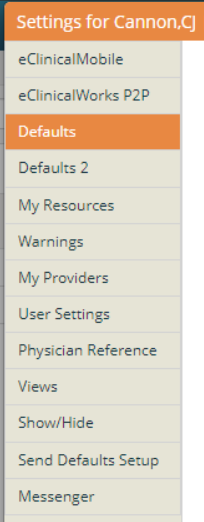
Click Menu > Settings > My Settings
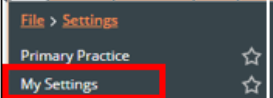
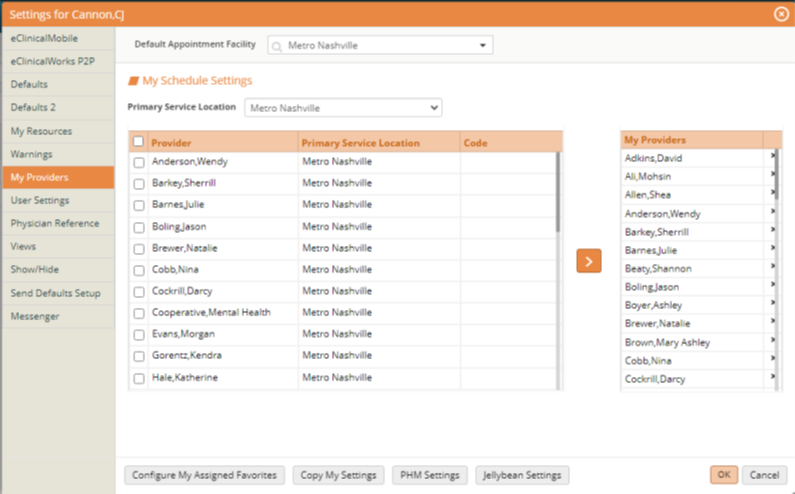
From My Providers Tab
Select/ Confirm the default appointment Facility.
Check checkbox next to Provider to select ALL. Click Arrow.
This may need to be repeated/updated as providers/default locations change.
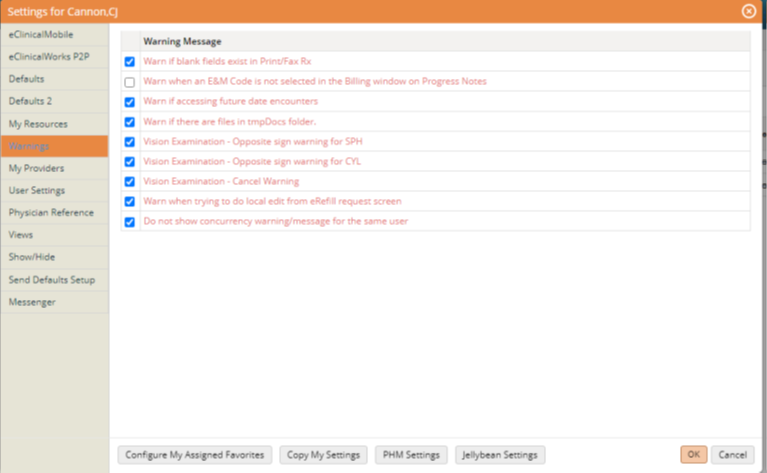
Click the Warnings tab: Uncheck the box related to the E&M Code to disable the E&M Warning code on every progress note.
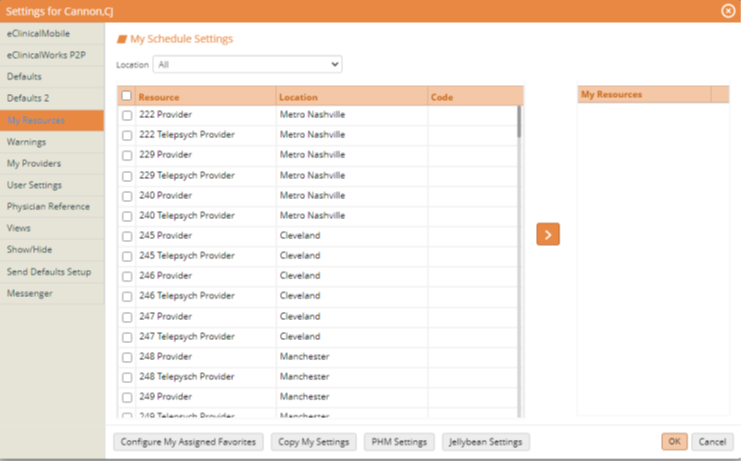
Click My Resources tab:
My Resources table should be blank as shown.
If there are names in this table – click the “x” to the right of the name. Clear out all names.
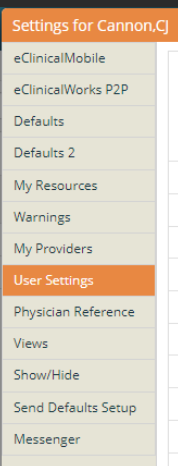
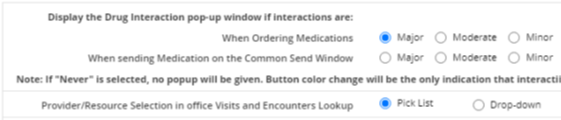
Click User Settings tab: Click Pick List for Provider/Resource Selection in Office Visits and Encounters Lookup
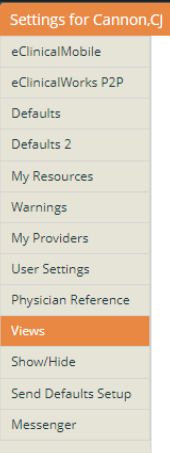
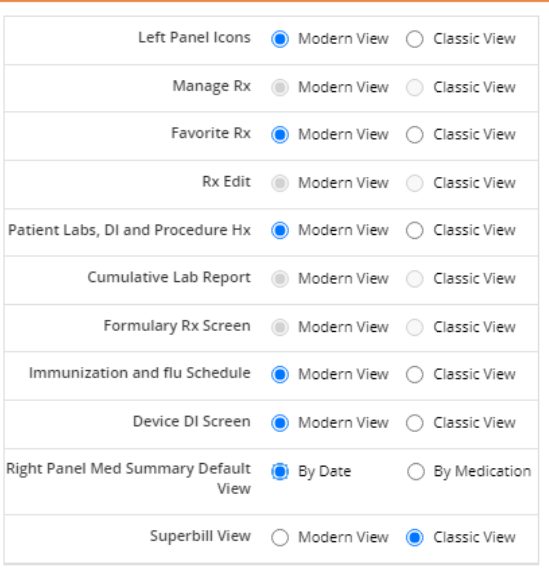
Click Views tab: Click By Date for Right Panel Med Summary Default View
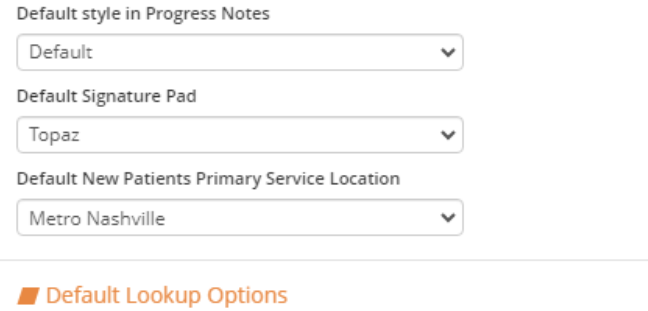
Click Defaults tab: Verify/Select Default New Patients Primary Service Location
Click okay.
Log out of eCW and log back in for settings to be applied.


